How to Create Partitions in Linux | Step-by-Step Guide for Beginners
bigsansar | March 6, 2026
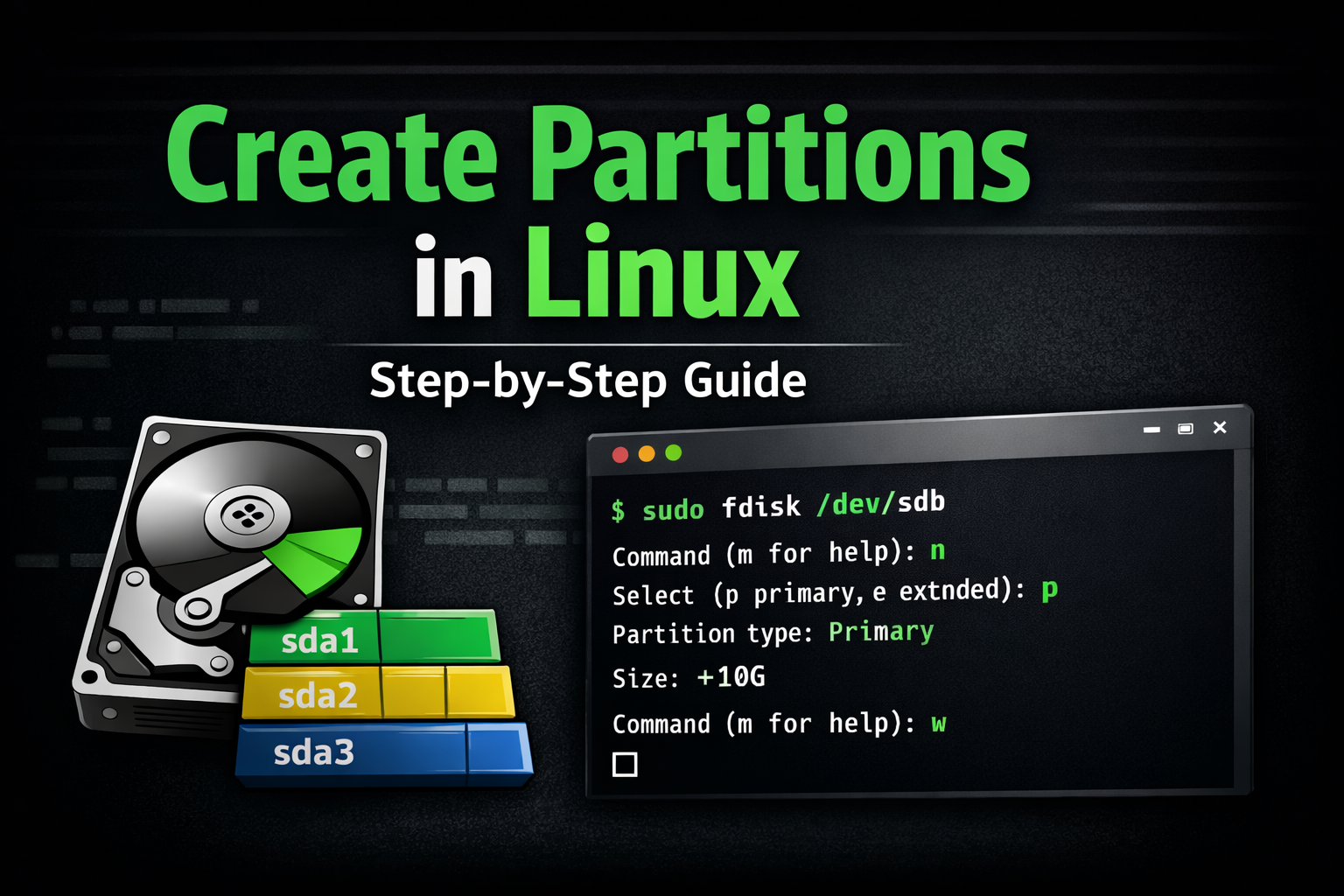
Partitioning in Linux is the process of dividing a hard disk into separate sections to organize data efficiently. It helps in managing files, installing multiple operating systems (dual boot), improving performance, and keeping system files separate from personal data. Proper partitioning also improves system stability and security.
Before creating any partition, it is very important to check available disks. This can be done using commands such as:
lsblk
or
sudo fdisk -l
These commands display all connected storage devices, like /dev/sda or /dev/sdb. Always verify the correct disk before making changes, because selecting the wrong disk can result in permanent data loss.
One of the most commonly used tools for creating partitions in Linux is fdisk. It is a command-line utility that allows users to create, delete, and manage partitions.
To start fdisk, use:
sudo fdisk /dev/sdb
Inside fdisk:
- Press
nto create a new partition. - Choose
pfor primary partition (if required). - Accept default values for partition number and starting sector.
- Specify the size (for example,
+10Gfor 10GB). - Press
wto save changes.
After creating the partition, the next important step is formatting. A partition must have a filesystem before it can be used. In Linux, the most common filesystem is ext4, which is stable and widely supported.
To format the partition:
sudo mkfs.ext4 /dev/sdb1
Formatting prepares the partition for storing data.
After formatting, the partition must be mounted to a directory so it can be accessed. Mounting connects the partition to a folder in the system.
First, create a mount point:
sudo mkdir /mnt/mydisk
Then mount the partition:
sudo mount /dev/sdb1 /mnt/mydisk
Once mounted, the disk can be used through the /mnt/mydisk directory.
If you want the partition to mount automatically after restarting the system, you must edit the /etc/fstab file. Adding the correct entry ensures the partition is mounted during boot.
Example entry:
/dev/sdb1 /mnt/mydisk ext4 defaults 0 2
Another easier method for beginners is using a graphical tool such as GParted. It provides a user-friendly interface for creating and managing partitions without using commands. This tool allows users to select a disk, create partitions, choose file systems, and apply changes with simple clicks.
Important Points to Remember:
- Always back up your data before partitioning.
- Double-check the disk name before making changes.
- ext4 is the most commonly used filesystem in Linux.
- Use caution when using command-line tools like fdisk.
- For modern systems, the GPT partition table is recommended instead of the older MBR.
In conclusion, partitioning in Linux is a powerful way to organize storage effectively. Whether using command-line tools like fdisk or graphical tools like GParted, the process must be done carefully. Proper planning and attention to detail ensure data safety and better system performance.
0 COMMENTS:
How to Create Partitions in Linux | Step-by-Step Guide for Beginners
Learn how to create partitions in Linux using fdisk and GParted. Step-by-step guide to create, form…
Debian Chroot Installation Guide: Step-by-Step Tutorial with Facts
Learn how to install Debian using chroot with debootstrap. Step-by-step guide, important facts, sys…
Kali Linux 2025.4 Release: New Hacking Tools & Wifipumpkin3 Preview
Discover Kali Linux 2025.4 release with three new hacking tools and Wifipumpkin3 preview. Learn abo…