ADB on Ubuntu Guide: Install APK, Fix Unauthorized & Android Debugging (2026)
bigsansar | June 13, 2026
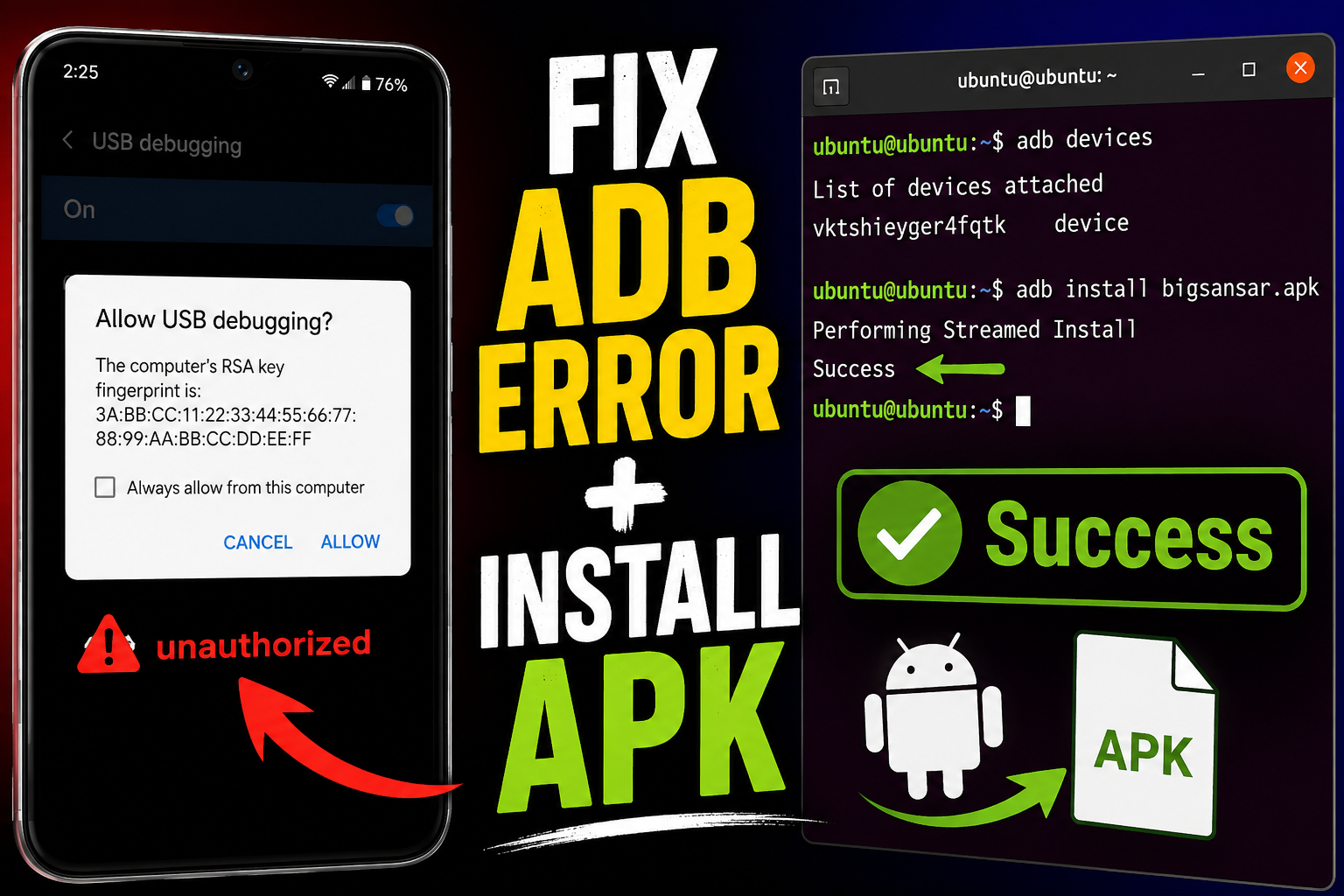
Android Debug Bridge (ADB) is one of the most powerful tools for Android development, testing, and device management. It allows direct communication between a computer (such as Ubuntu) and an Android device for installing apps, debugging, transferring files, and monitoring the system.
This guide explains everything practically and professionally: installation, device connection, APK handling, and debugging.
What is ADB?
ADB (Android Debug Bridge) is a command-line tool included in the Android SDK Platform Tools. It enables communication between a computer and an Android device.
Key Uses of ADB:
- Install and uninstall Android apps (APK)
- Debug applications
- Access device logs (logcat)
- Transfer files between PC and phone
- Run shell commands on Android
Installing ADB on Ubuntu
Step 1: Update system packages
sudo apt update
Step 2: Install ADB and Fastboot
sudo apt install adb fastboot
Step 3: Verify installation
adb version
If you see version details, ADB is successfully installed.
Enable USB Debugging on Android
ADB will not work unless USB Debugging is enabled.
Steps:
- Go to Settings → About Phone
- Tap Build Number 7 times
- Enable Developer Options
- Go to Developer Options
- Turn ON USB Debugging
Connecting Device to Ubuntu
Check connected devices:
adb devices
First-time behavior:
ADB may show:
* daemon not running; starting now at tcp:5037
* daemon started successfully
This is normal.
Successful connection:
List of devices attached
device_id    device
Unauthorized Device Issue (Important)
If you see:
unauthorized
It means the computer is not authorized on the phone.
Fix:
- Look at your phone screen
- Tap Allow USB Debugging
- Select:
- Always allow from this computer
- Allow
If the pop-up does not appear:
- Go to Developer Options
- Tap Revoke USB debugging authorizations
- Reconnect the USB cable
Restart ADB:
adb kill-server
adb start-server
adb devices
Installing APK using ADB
Install APK:
adb install app.apk
Example:
adb install bigsansar.apk
Success output:
Success
Updating Existing App
To replace an existing app:
adb install -r app.apk
Important: -r means replace the existing installation.
Sending APK to Phone (Without Installing)
adb push app.apk /sdcard/Download/
Then install manually from the phone's file manager.
Uninstalling Apps
adb uninstall com.example.app
Example:
adb uninstall com.bigsansar.bigsansarapp
To list installed packages:
adb shell pm list packages
Debugging Android Apps (Logcat)
Logcat is one of the most important tools for Android debugging.
View Python logs (Kivy apps):
adb logcat -s python
View Kivy logs:
adb logcat | grep -i kivy
Find critical crashes:
adb logcat | grep -i fatal
Understanding Logcat Output
Example logs:
com.bigsansar.bigsansarapp
org.kivy.android.PythonActivity
WindowManager
SurfaceFlinger
These are system-level logs and NOT necessarily crashes.
Real crash indicators include:
- FATAL EXCEPTION
- AndroidRuntime error
- Traceback (Python error)
Real Debugging Example
If your Kivy app crashes, logcat may show:
ModuleNotFoundError: No module named 'requests'
Meaning:
The required Python library is missing from the build.
Fix (Buildozer):
requirements = python3,kivy,requests
Then rebuild the app.
ADB is an essential tool for Android development and device management. On Ubuntu, users can easily install apps, debug applications, transfer files, and analyze system logs.
Key commands to remember:
adb devices→ check device connectionadb install→ install APKadb install -r→ update appadb uninstall→ remove appadb logcat→ view logs
Mastering ADB significantly improves Android development, mobile troubleshooting, and Kivy application debugging efficiency.
0 COMMENTS:
ADB on Ubuntu Guide: Install APK, Fix Unauthorized & Android Debugging (2026)
Learn how to install and use ADB on Ubuntu. Connect Android device, fix “unauthorized” error, insta…

Screen Mirror Android on Ubuntu 20.04 – Step-by-Step Guide
Learn how to mirror your Android device to Ubuntu 20.04 using Scrcpy, Vysor, or KDE Connect. Step-b…

How to Install and Configure Apache on Ubuntu
2025-06-07 03:59:24.874882+00:00
ubuntu chroot environment | What is chroot?
2025-06-07 03:59:24.874882+00:00
How to Manage WiFi and Web Browsing in Linux Using the Terminal
2025-06-07 03:59:24.874882+00:00

Essential Linux Commands for System Administration
2025-06-07 03:59:24.874882+00:00

Beginner's Guide to Learning Ubuntu Server
2025-06-07 03:59:24.874882+00:00